14 czerwca 2026 14:37
An Accountant's Scrapbook: A Few Words About Qualified Signatures in Poland
Many official matters can now be handled without having to visit an office, but instead while leisurely sipping coffee in the comfort of your own home. However, to ensure that a document is properly signed and sent to the government office, you need to take care of certain details. For an individual who only signs documents this way once in a while, a trusted profile (in Polish: Profil Zaufany) is sufficient. As stated on the government website, a trusted profile (in Polish: Profil Zaufany) is a means of electronic identification that allows us to verify our identity online and sign a document with an electronic signature. However, for individuals who run a business or members of a management board, I strongly recommend purchasing a qualified digital signature. The use of this type of signature is not limited to interactions with public administration, but also extends to business in the broadest sense. Below is an overview of qualified digital signatures.
Qualified digital signature – why do we need it?
A qualified digital signature is an electronic signature that has the same legal validity as a handwritten signature. It is verified by a special qualified certificate that unequivocally confirms the identity of the person signing the document. The signature can only be used by the person to whom the signature and certificate are assigned. With such a signature, we can not only handle official matters but also sign contracts, agreements, and resolutions remotely.
How do I identify certified software providers?
The website of the National Certification Center NCC is very useful here, as it provides a list of certified providers. The government website, in turn, lists the most popular ones, such as Szafir 2.0, proCertum SmartSign, PEM-HEART 3.9, and SecureDoc 2 by EuroCert. Additionally, users should note the standard components of the kit, namely the cryptographic card, card reader, and necessary software. Most often, the software installation process is simpler than filling out the application form, especially for users without a Polish PESEL number. How to obtain such a number is a separate topic, which I’ll leave for another article. Here, we’re focusing solely on the signature itself.
What can I use a qualified digital signature for?
A qualified digital signature allows you to, among other things:
Government and public agencies
- filing declarations in the Płatnik system,
- logging into PUE ZUS,
- filing tax returns,
- submitting JPK files to tax offices,
- managing KRS entries and financial statements.
Business and tenders
- participating in electronic auctions,
- signing contracts remotely,
- submitting European Single Procurement Documents,
- registering contractors in tenders.
Finance and HR
- sending electronic invoices,
- managing employee files,
- entering into civil-law contracts,
- reporting to the General Inspector of Financial Information.
How to sign a document on Biznes.gov.pl?
The process is as follows:
-
Select a signature method. After filling out the application, select “Qualified Signature” (other options will also be available, such as Trusted Profile and online banking).
-
Download the document. Click “Download document” and save the file to your computer. Tip – sometimes the browser doesn’t ask where to save the file, so it will most likely be saved in the Downloads folder. Don’t close the browser window; you’ll return to it in the next steps.
-
Signing in the program. You create the signature in the external software that you received along with your electronic signature. Tip: When saving the signed document, be sure to slightly change its name to distinguish it from the unsigned document—this way, you’ll avoid mistakes and ensure you select the signed file when attaching it in the next step.
-
Adding the signed file. Once you have signed the file, return to Biznes.gov.pl and click “Add document,” locate the file on your computer, and attach it.
-
Submitting the application. Don’t forget to click ‘Send document’.
Below are a few notes that can also be found on the government website:
-
On Biznes.gov.pl, you currently cannot use the Sigillum Sign qualified signature (signature provider: Polska Wytwórnia Papierów Wartościowych). Use a different signing program or choose another available method to sign the document, such as a trusted profile. As of June 14, 2026;
-
After signing the document with a qualified signature, do not reopen the file to make further corrections or check it (this may cause technical errors that make it difficult to read the document);
-
If you are using Szafir 2.0, make sure you upload a document with the XAdES extension;
-
If you encounter a problem signing documents despite using the recommended settings, try using a different signing program or a trusted profile.
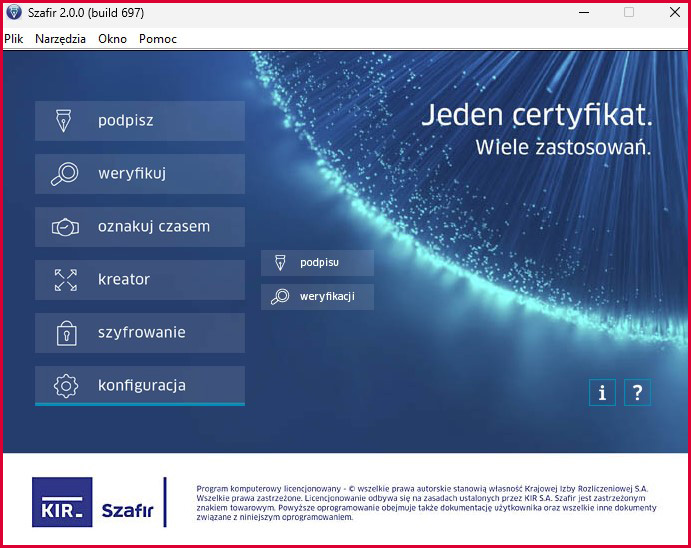
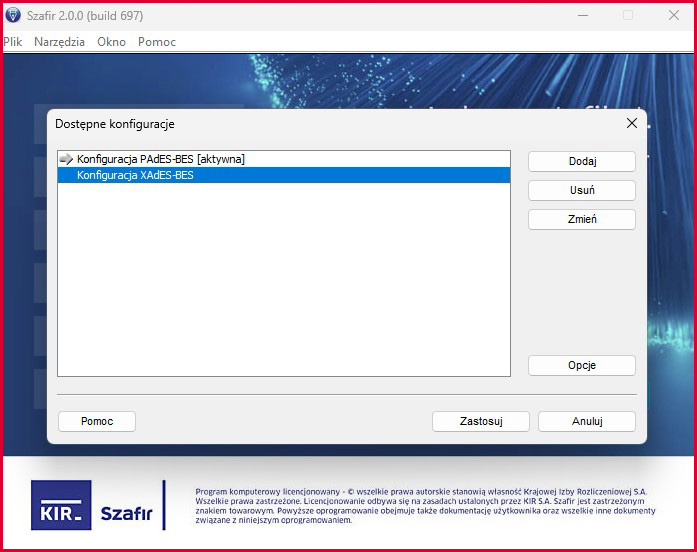
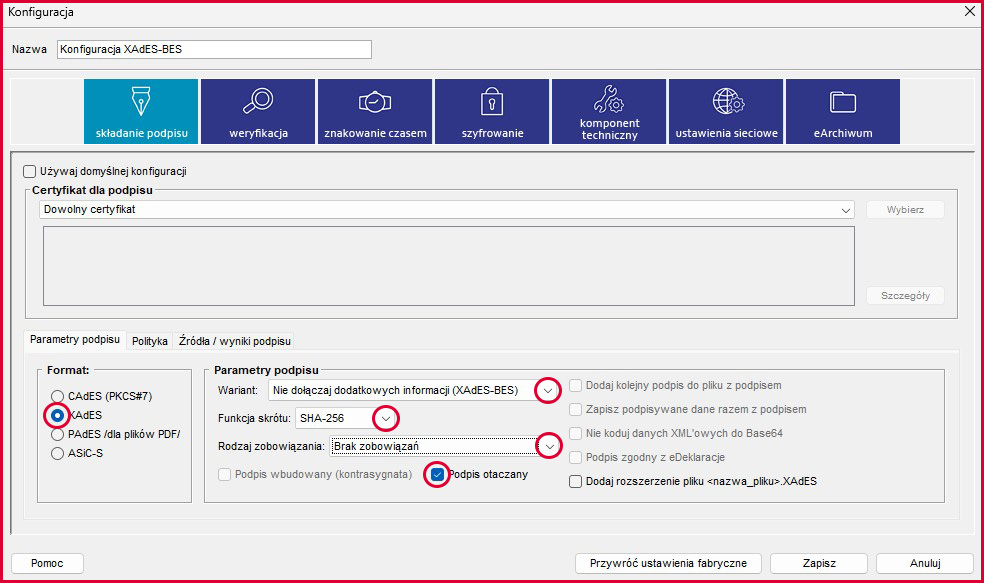
Program settings: Szafir 2.0
Here’s a quick guide to the settings:
Configuration → select the one marked as “active” from the list → signing → Format: XAdES → Signature parameters → Option: Do not include additional XAdES-BES information → Hash function: SHA-256 → Type of commitment: no commitments → Check: Enclosed signature
Program settings: proCertum SmartSign
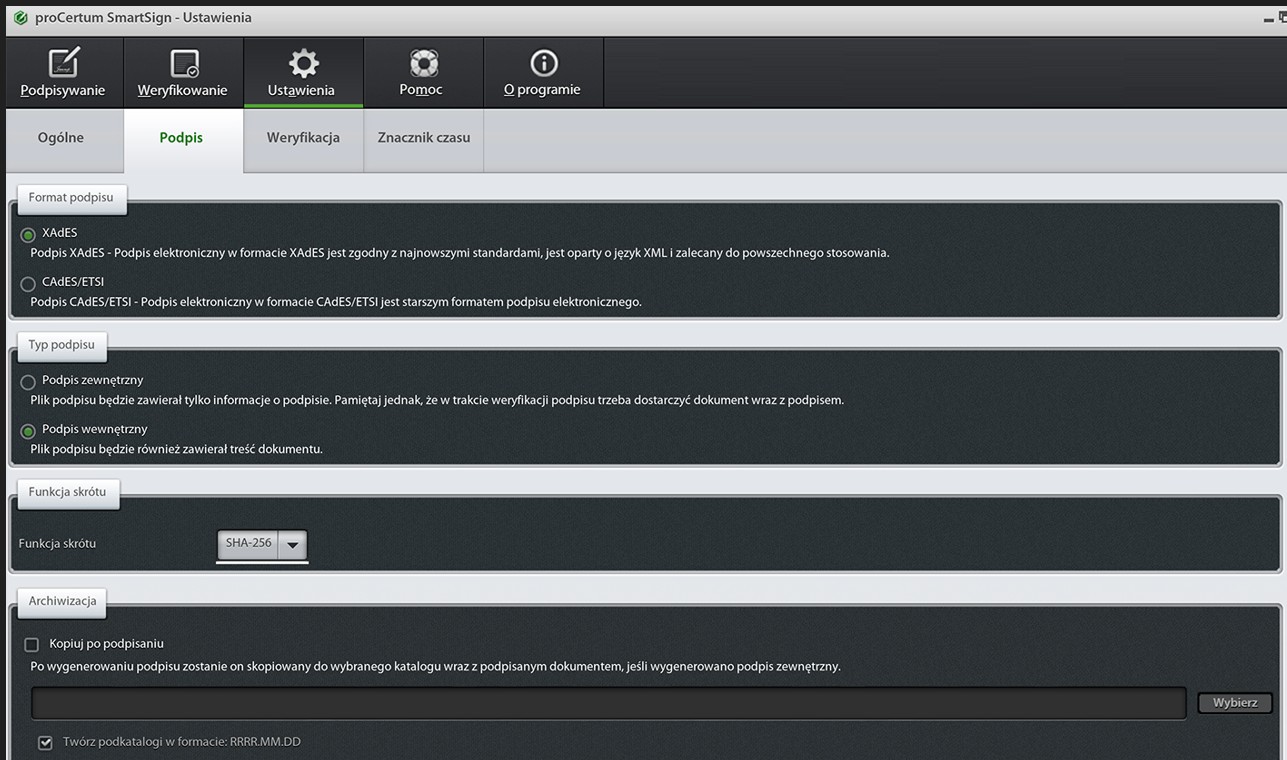
Below is a quick path to the settings:
Settings → Signature → Signature format: XAdES → Signature type: Internal signature → Hash function: SHA-256 → Archiving: Two subdirectories in YEAR.MONTH.DAY format → Additional signature options: Check certificate validity online before signing → Signature variant: Do not include additional information (BES) → Advanced PDF/PAdES signature options: Place a graphical signature symbol in the PDF document → Advanced XAdES signature options: Create an extended signature – allows you to add another signature (if necessary)
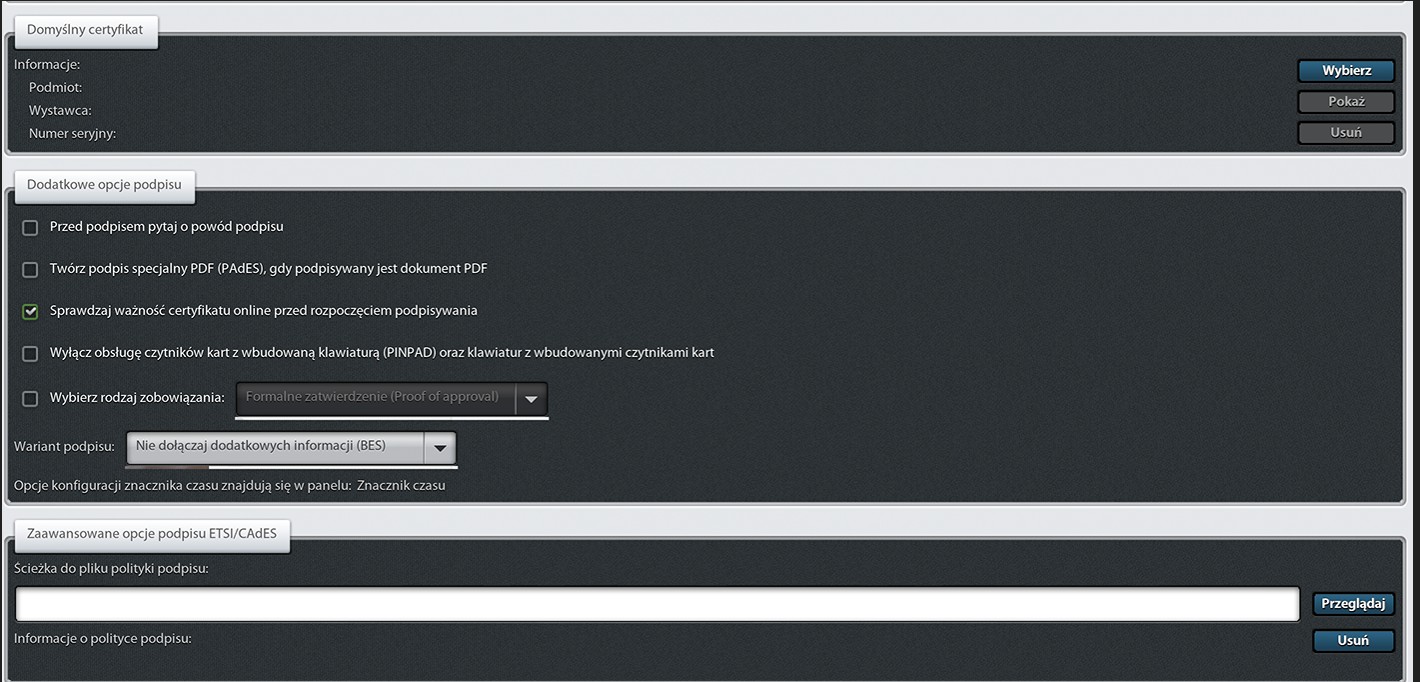
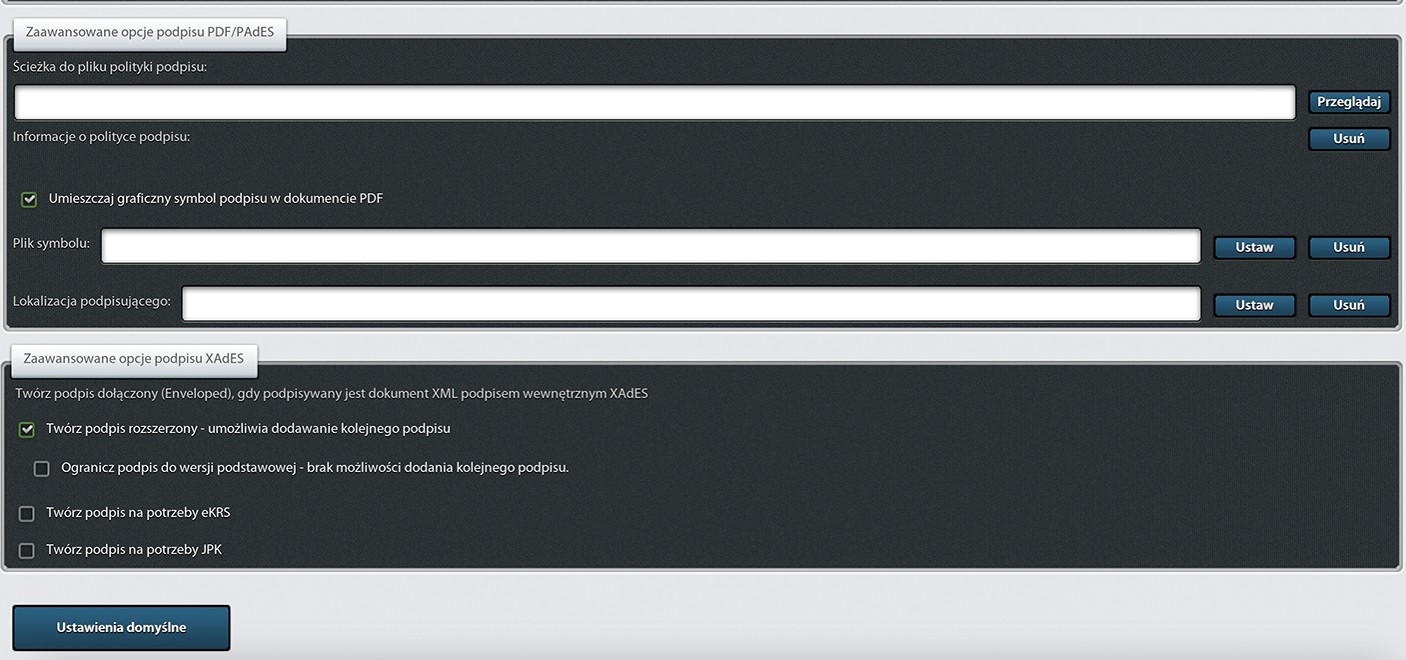
There are two other examples on the government website, but I rarely encounter them, so I decided not to include them here.
Signature Verification
I’m also sharing two websites where you can verify the validity of a submitted signature.
Other links
Act of September 5, 2016, on Trust Services and Electronic Identification
Powrót